Snapshots
A snapshot is the unit of work executed by Chromatic to run a UI Test. This work can be taking a screenshot, capturing accessibility data, copying such information from one test to another, or even bypassing such work completely if it is found to be unnecessary.
Looking for information on snapshot billing? Go to billing docs
The type of work performed by Chromatic is determined by the following factors:
-
Visual vs. Accessibility: A visual test captures the rendered state of the UI, whereas an accessibility test captures accessibility information about the UI. Both types of tests take a snapshot and compare it to a baseline snapshot to detect changes.
-
Capture vs. TurboSnap: A captured snapshot performs the full suite of work, including taking screenshots or capturing accessibility data, and running diffs. A TurboSnap snapshot avoids unnecessary work if it is determined that the associated code has not changed, speeding up the testing process.
These dimensions stack to create a snapshot. For example, you can have a “captured visual snapshot” or a “turbo visual snapshot”. The short forms are “visual snapshot” and “visual turbosnap”, respectively.
Snapshot-compatible tests
A test represents a piece of UI rendered in a specific state that Chromatic can capture as a snapshot. Chromatic supports the following types of tests:
- Storybook Stories
- Storybook for React Native stories
- Vitest browser mode tests
- Playwright & Cypress End-to-End (E2E) tests
Each test can generate multiple snapshots, varying by browser (or mobile simulators and emulators), theme, viewport size, and other configurations you define.
With Vitest, Playwright, and Cypress, you can even capture multiple visual snapshots within a single test for even more granular analysis.
How are snapshots captured?
Chromatic captures snapshots by following these steps:
1. Load each test in the designated device and viewport
Chromatic’s Capture Cloud leverages a fleet of standardized browsers and mobile emulators to load all of your tests (either stories or archives) in parallel, at the specified viewport size.
2. Wait for the test to render
Capture Cloud uses underlying browser APIs combined with our own set of heuristics to determine when the UI has “loaded” and is ready to be captured.
3. Capture screenshot and/or accessibility data
For visual tests, Chromatic takes a screenshot and crops it to the dimensions of the UI.
For accessibility tests, Chromatic runs accessibility audits and collects information about the rendered UI.
4. Save snapshot and diff between baseline and new snapshot
Each snapshot is associated with a test and tagged with commit, branch, and other relevant metadata. Chromatic then runs pixel diffs between the new snapshot and the previous baseline snapshot for that test, highlighting any visual changes. For accessibility tests, Chromatic compares the new accessibility data with the previous baseline data to identify any changes.
Visual snapshots
When is a visual web snapshot captured?
Various factors can influence the waiting period, for step 2, before the snapshot is captured.
One of the primary heuristics Chromatic uses is network quiesence, a period of network inactivity which signals that all resources have loaded. This loading analysis is our best approximation for determining when the UI has finished rendering.

Other factors that impact when a snapshot is captured include:
Animations and videos
Chromatic proactively pauses CSS animations/transitions, videos and GIFs to prevent false positives. However, Chromatic cannot disable JavaScript-driven animations, so you are responsible for pausing them.
If not paused during testing, the snapshot will be captured mid-animation and trigger false positives.
Interaction tests
If you are using Storybook interaction tests, Chromatic waits for the play function to complete before capturing the snapshot. That includes any interactions, assertions or delays defined within the play function.

Delays
Delays ensure that a minimum amount of time (in milliseconds) has passed before Chromatic takes a screenshot. The delay is applied after the network quiescent phase.
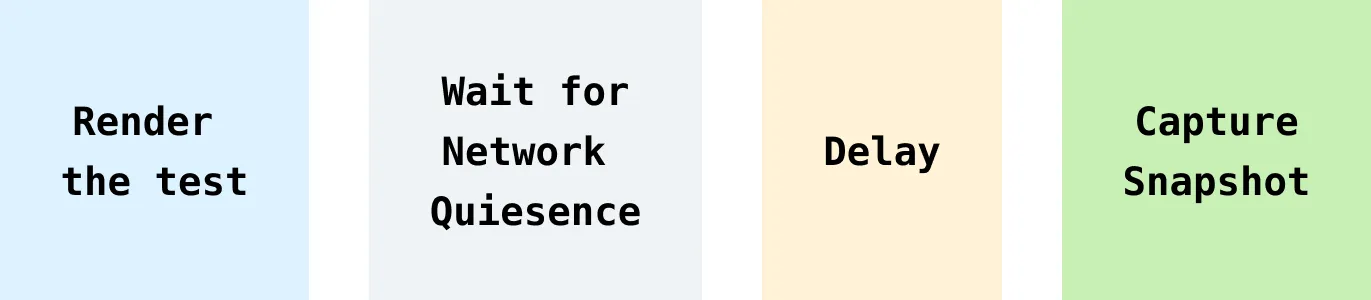
If you apply a delay to a story that has interactions, the delay is applied after the interactions have completed.

View visual snapshot for a test
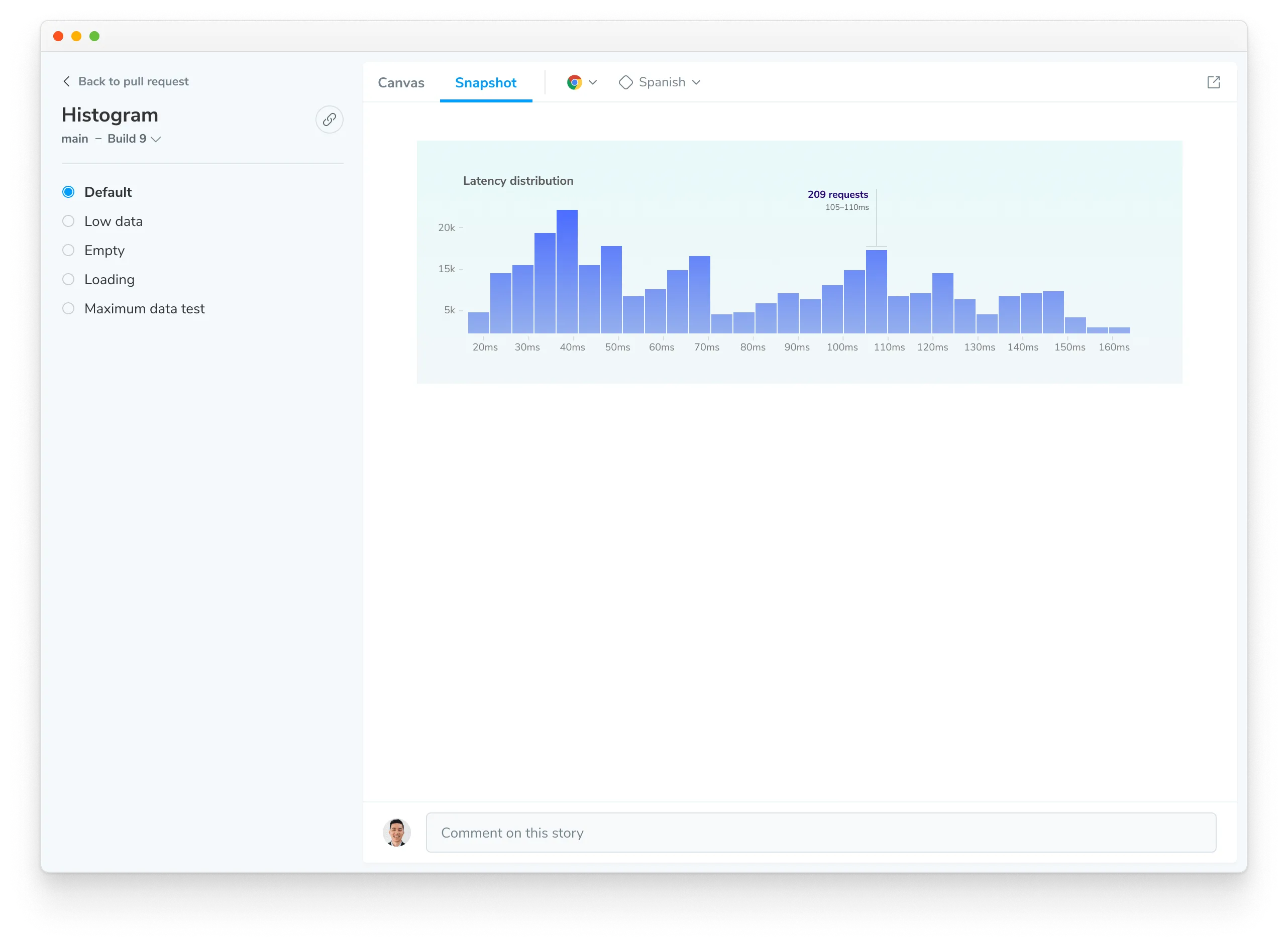
The component screen allows you to switch between ‘Canvas’ and ‘Snapshot’. Under the Snapshot tab, you’ll find the image captured by Chromatic’s cloud browser. This is exactly what the browser saw when it rendered the test. This could be the component’s initial or intermediate state.
View live rendered test using the Canvas
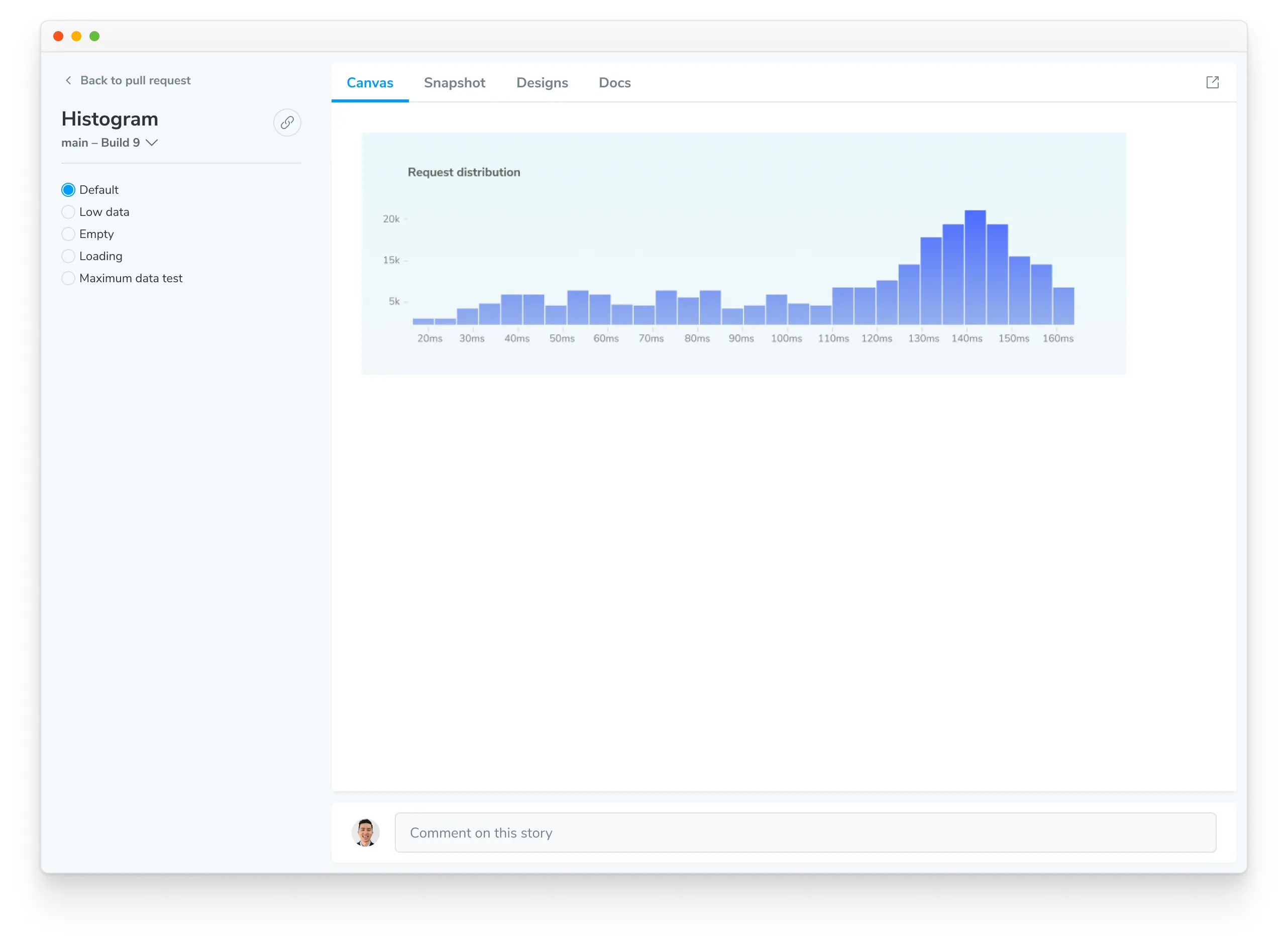
Canvas is an interactive environment that renders your test code live in the browser. These are fully inspectable, enabling you to troubleshoot changes and errors effectively.
With Storybook, it displays the story. With Vitest, Playwright, and Cypress, it shows the archive of your test. In all cases, you see the final state of the test UI.
Differences in visual snapshot vs Canvas
The visual snapshot might differ from the Canvas for various reasons, such as JavaScript execution being blocked during capture, which can prevent certain elements from being captured. Or the use of the isChromatic() function to alter rendering on Chromatic.
For a Storybook test, open the affected story in the published Storybook and use Storybook’s open-in-new-tab button to view the story on its own. Chromatic captures this story view, which can behave differently from the Canvas view inside Storybook. Check it before debugging a difference between Canvas and the snapshot.
Device pixel ratio
Starting with Capture 9, Chromatic captures visual snapshots at a device pixel ratio (DPR) of 2.0. Snapshots are sharper, and your UI layout remains unchanged because the viewport is still measured in CSS pixels.
Chromatic compares a visual snapshot to its baseline at the appropriate pixel level, so a DPR 2.0 snapshot compared to a DPR 1.0 baseline is always flagged as changed, even when the UI is identical. When the DPRs don’t match, Chromatic displays a notice above the comparison so you know the difference is expected. This happens on the build that upgrades your project to Capture 9, and it can also happen in the rare fallback case described below.
Fallback to DPR 1.0
Doubling the pixel density also doubles the pixel dimensions of the captured image. Firefox and Safari have a maximum image height and width, so a very tall or wide test that fits within that limit at DPR 1.0 can exceed it at DPR 2.0.
When a captured snapshot hits this limit, Chromatic automatically recaptures it at DPR 1.0 instead of failing the test. You’ll see a notice above the comparison for that test. Because the DPR changed, every pixel is reported as changed. Accept the new snapshot to set it as the baseline.
Subsequent builds compare DPR 1.0 against DPR 1.0 for that snapshot and report diffs as expected.
This fallback applies only to that individual snapshot. Other browsers, viewports, and tests in the same build continue to capture at DPR 2.0.